City Cleaning · restaurant portal
Your portal, in five minutes
This is where you see who is booked for you, who came, and the hours you will be invoiced. Here is where everything is.
Need a hand? Ring +44 7458 616066 or email nashiv@cityclean.london.
Watch it in four minutes
Everything below, shown on screen and read aloud. Or read on — the steps are the same.
1Open the link and sign in
Go to portal.cityclean.london. Type the email and password the office sent you, then press Sign in.
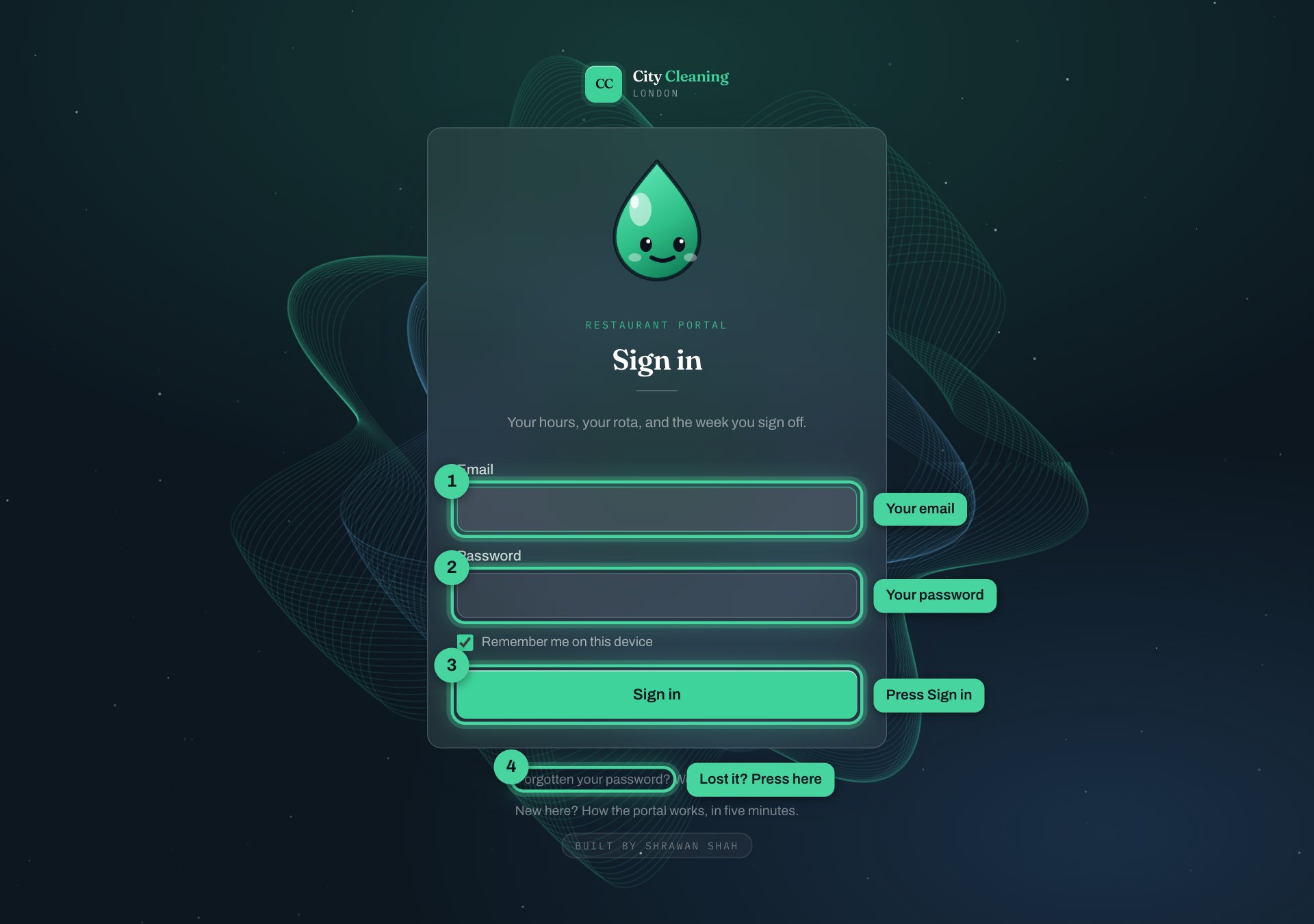
- 1Your email
- 2Your password
- 3Sign in
- 4Lost your password? Press here
2Lost your password?
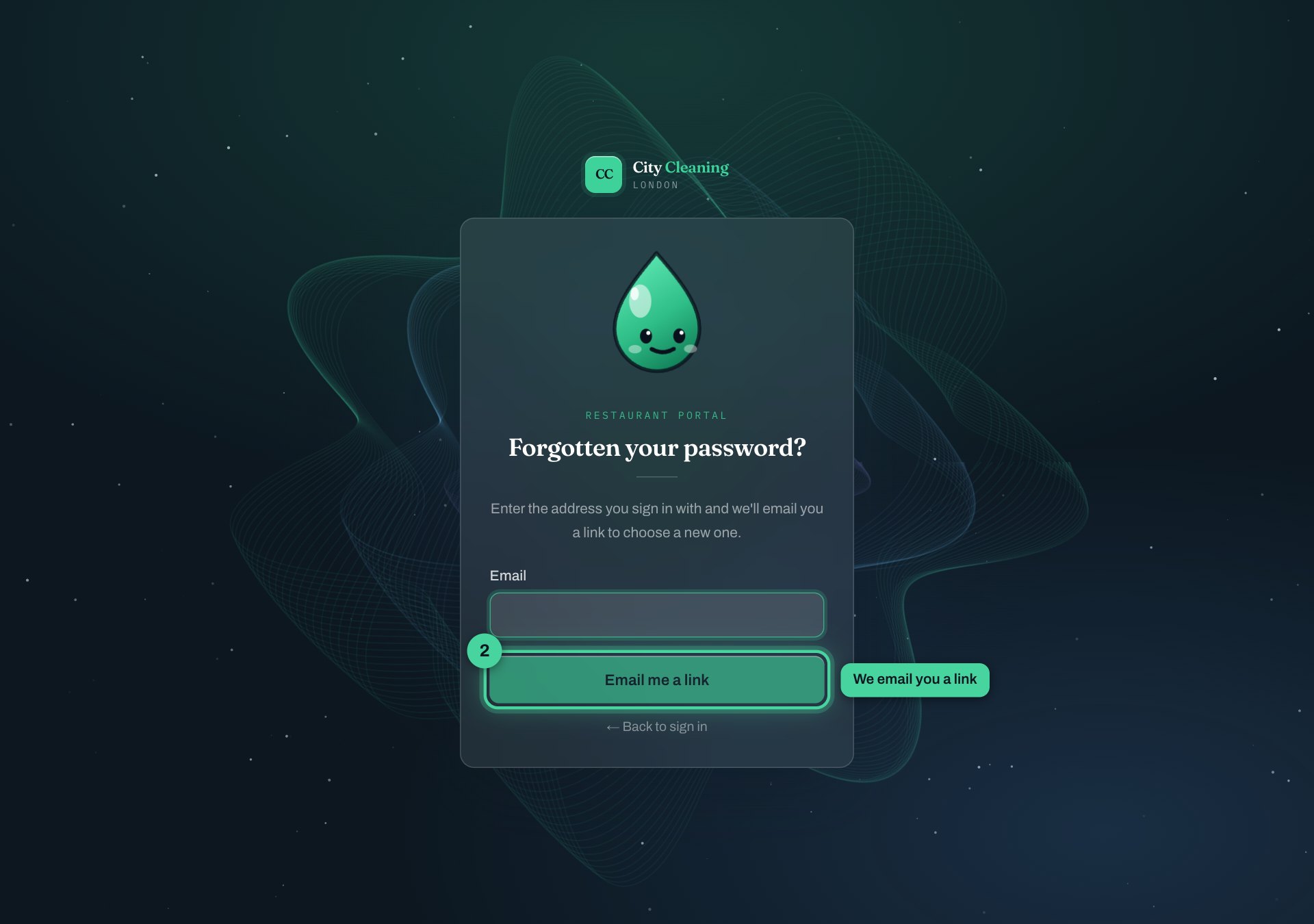
Press Forgotten your password? on the sign-in page, type your email, and we send you a link to set a new one. Check your spam folder if it does not arrive in a couple of minutes.
3This is your page
Everything is on one page. The numbers below show where each thing is.
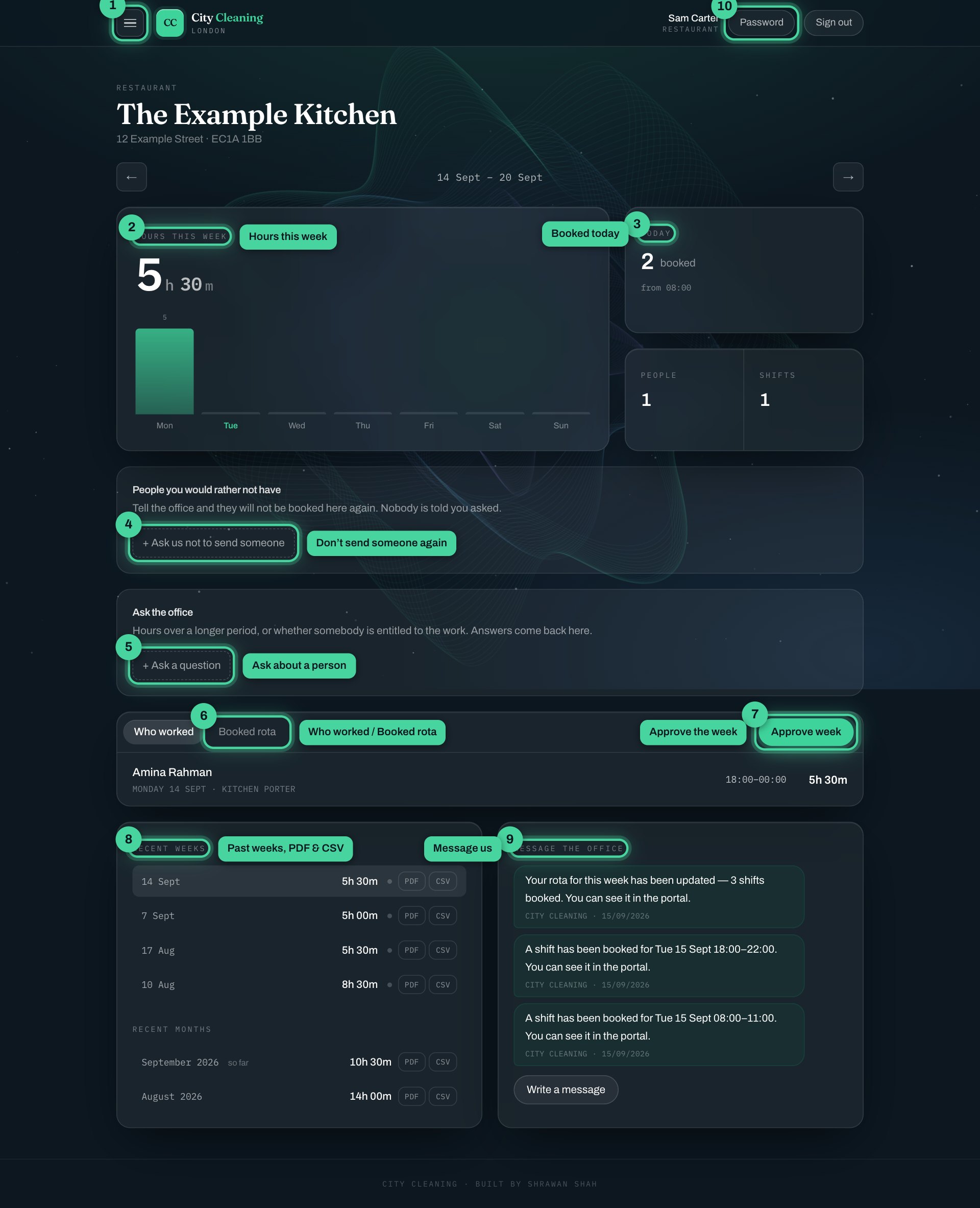
- 1Menu — jump to any part, turn notifications on
- 2Hours this week — the hours you will be invoiced, day by day
- 3Today — who is booked in today
- 4Ask us not to send someone again
- 5Ask a question about a person
- 6Who worked / Booked rota
- 7Approve the week
- 8Past weeks, with PDF and CSV
- 9Message the office
- 10Change your password
4Move between weeks
The arrows either side of the date move you a week back or forward. The big number is the hours the office has confirmed so far for that week.
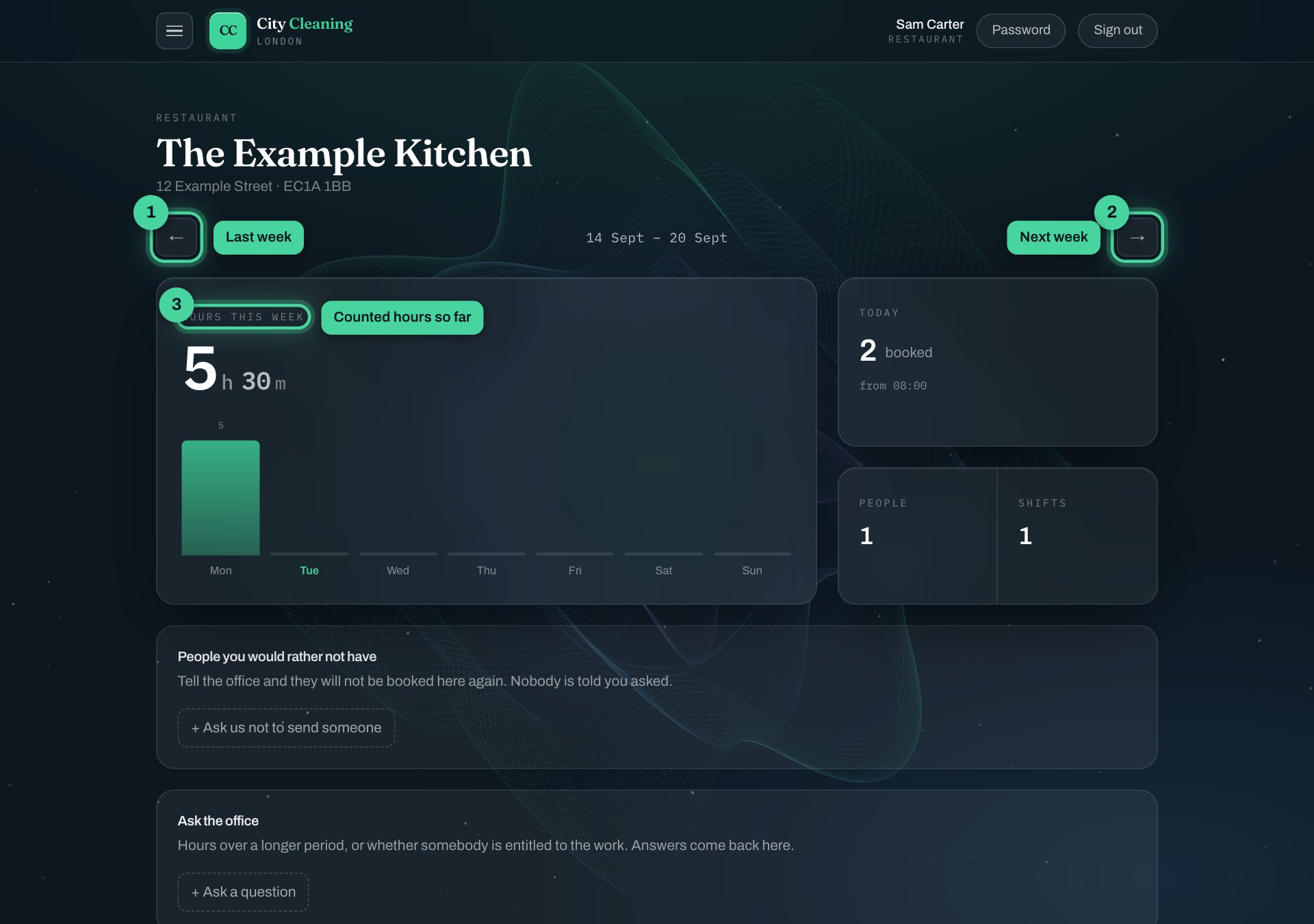
- 1Last week
- 2Next week
- 3Confirmed hours so far
5Who came, and who is booked
Who worked shows who actually came — the person, the day, the job and the hours. Booked rota shows what is coming up.
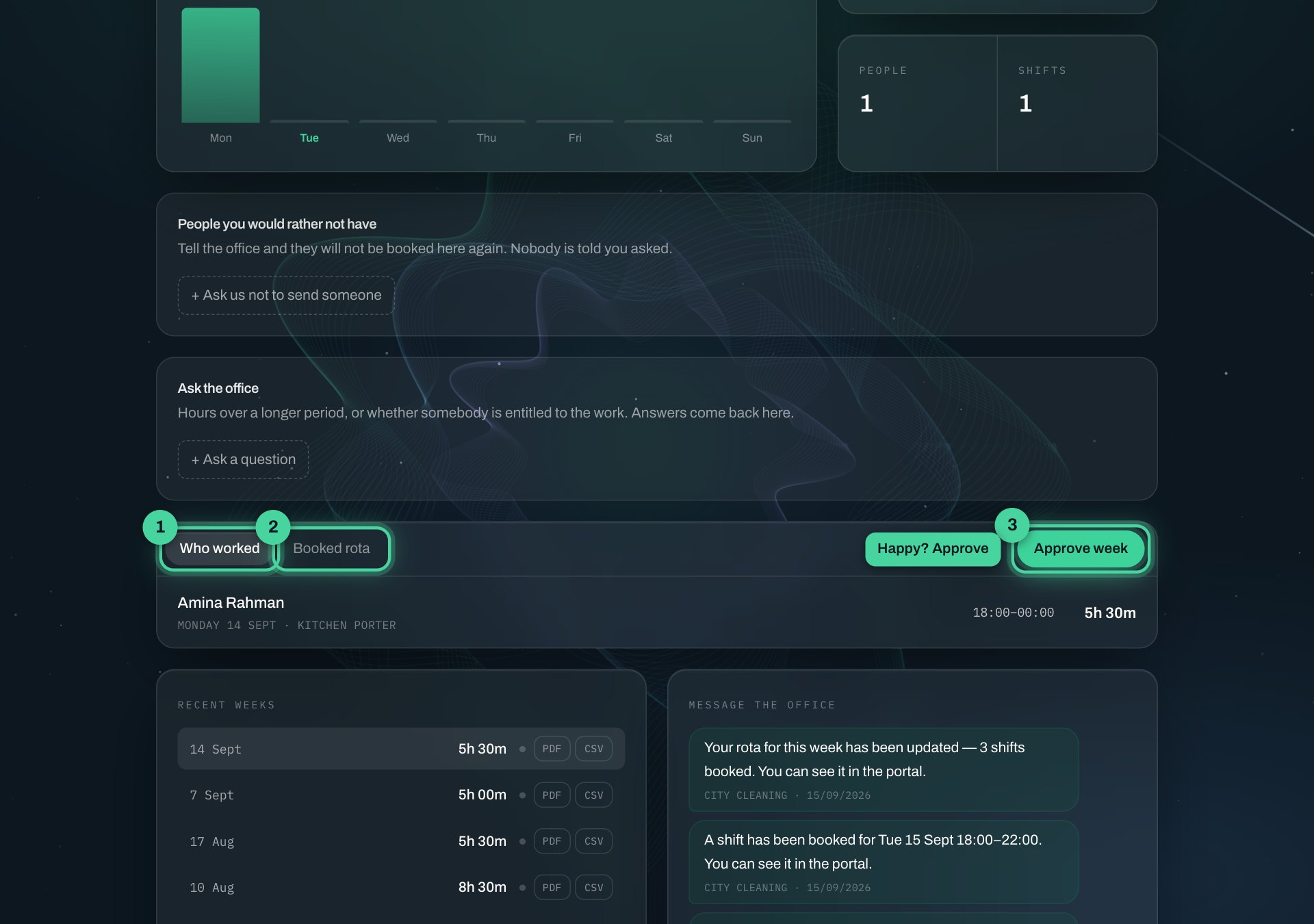
- 1Who actually came
- 2What is booked
- 3Approve the week
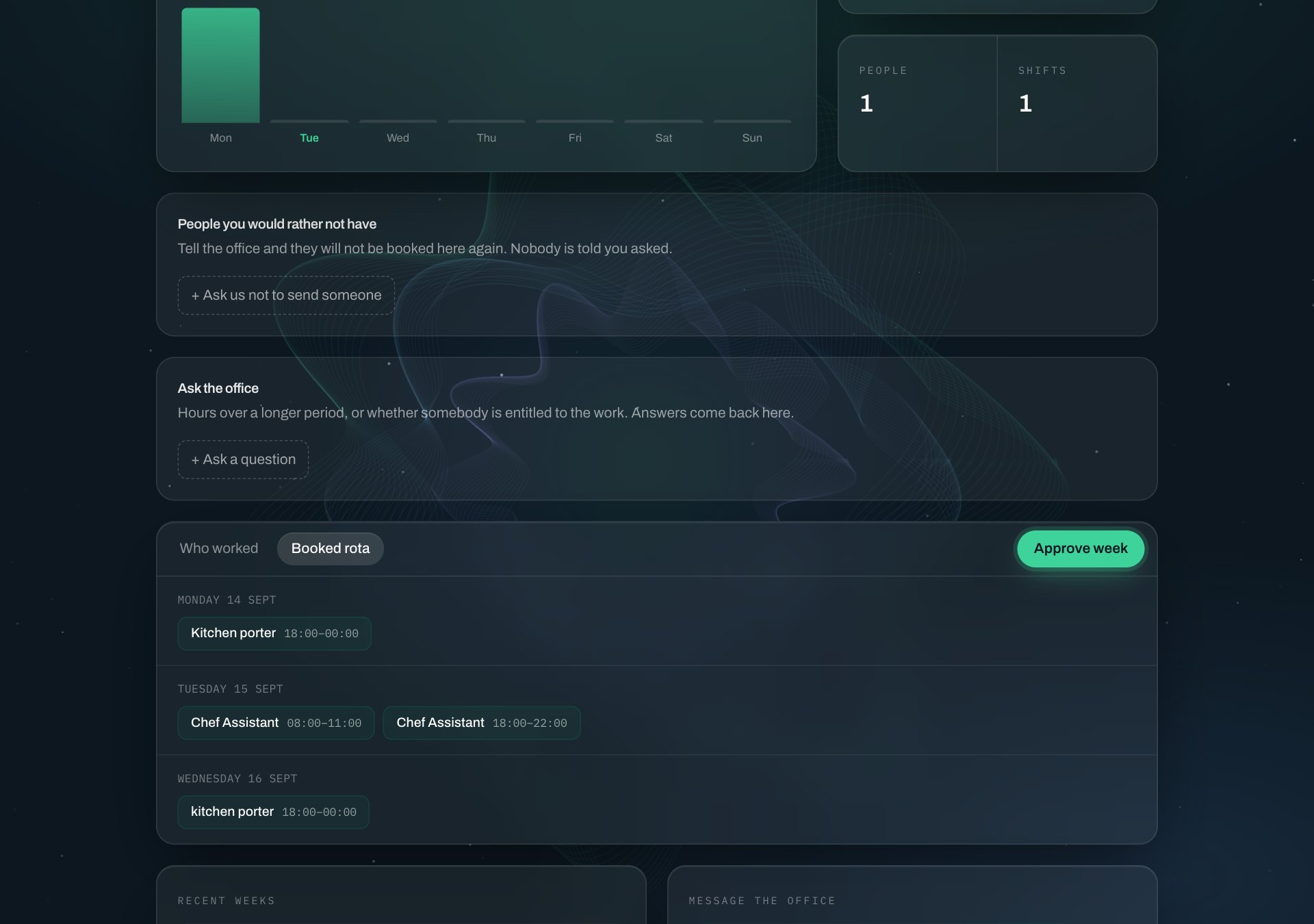
Every time the office changes your rota, you get a message in the portal.
6Approve the week
When the hours look right, press Approve week. That is you saying “yes, these hours are correct”. If something is wrong, do not press it — send us a message (step 8) and say which day.
7Download a timesheet
Past weeks are listed with their hours. PDF gives you the timesheet to keep or forward. CSV opens in a spreadsheet.
Below the weeks, the last three months are listed too — a whole month on one timesheet, with the same PDF and CSV.
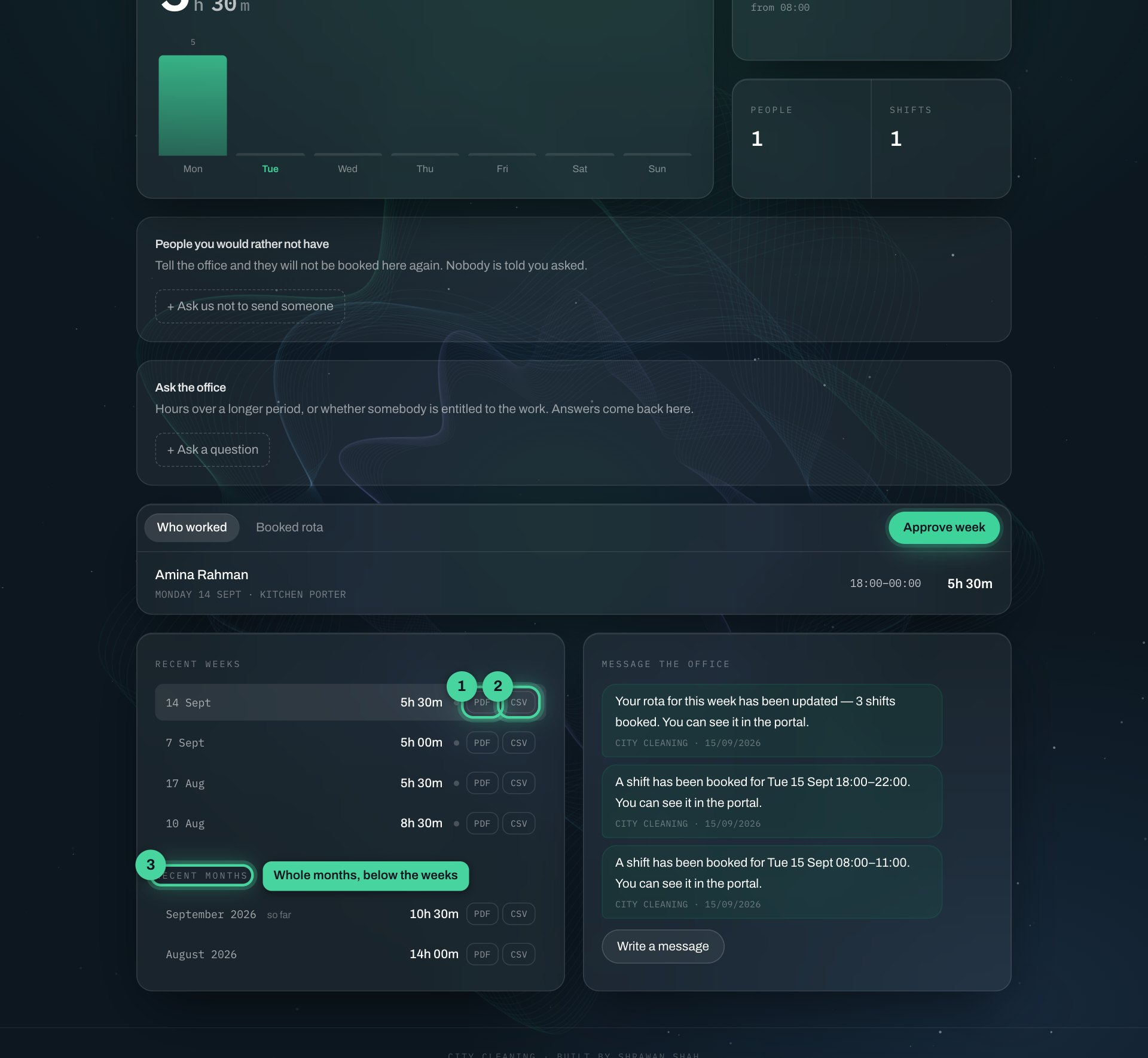
- 1Timesheet as PDF
- 2For a spreadsheet
- 3Whole months, below the weeks
8Message the office
Need cover tomorrow? A time changed? Press Write a message, type, and press Send. The office sees it straight away and replies here.
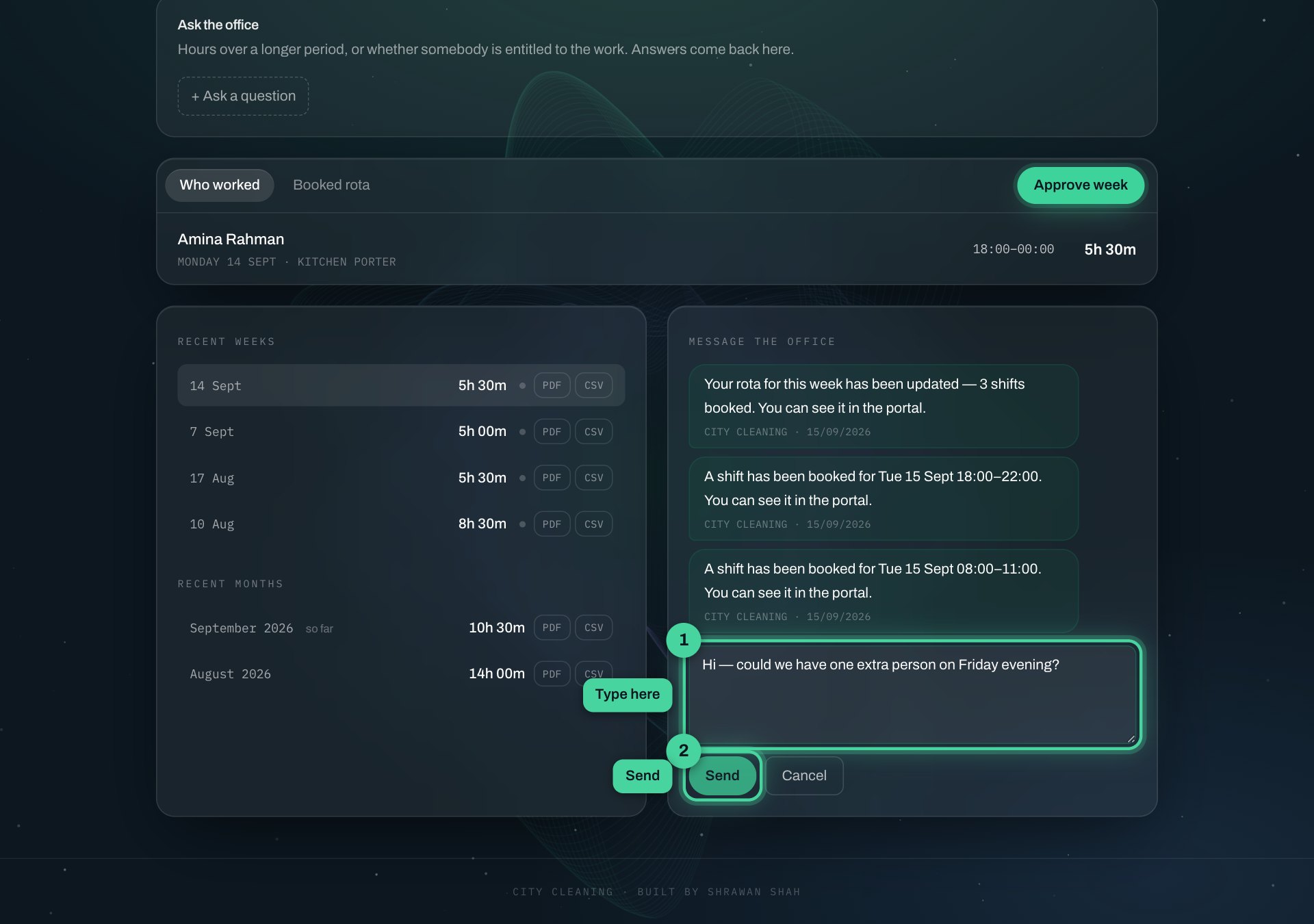
- 1Type here
- 2Send
9Ask a question about a person
For questions like “how many hours has this person done since July?” or “are they allowed to work?”. Press Ask a question, choose what it is about, pick the person, write your question and press Send. The answer comes back in the same place.
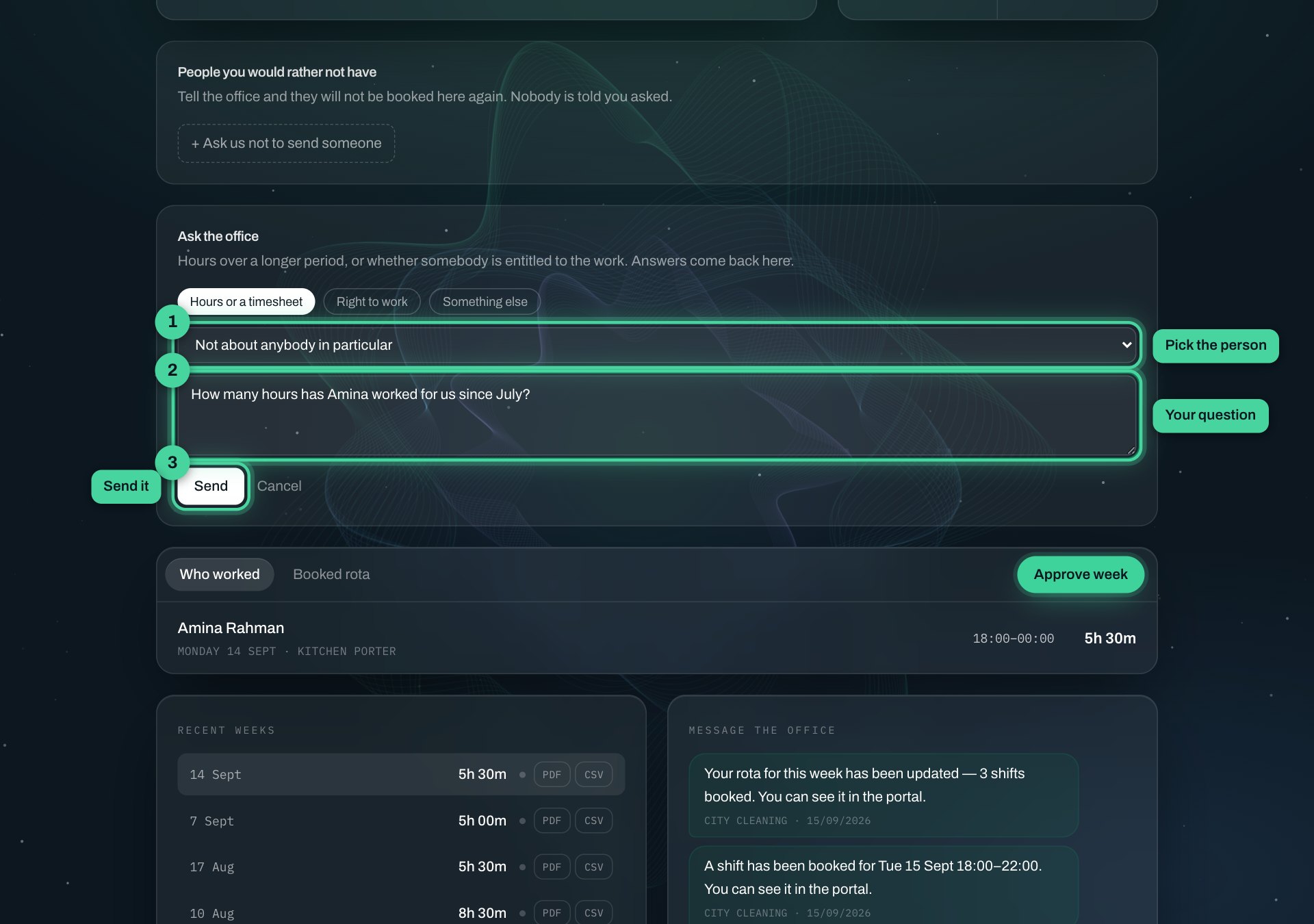
- 1Pick the person (or leave it general)
- 2Your question
- 3Send
If we confirm someone’s right to work, you see the dates and the status only — never a document.
10Don’t send someone again
If a person should not come back, press Ask us not to send someone, pick them, say what happened, and press Tell the office. We will not book them for you again. They are not told you asked.
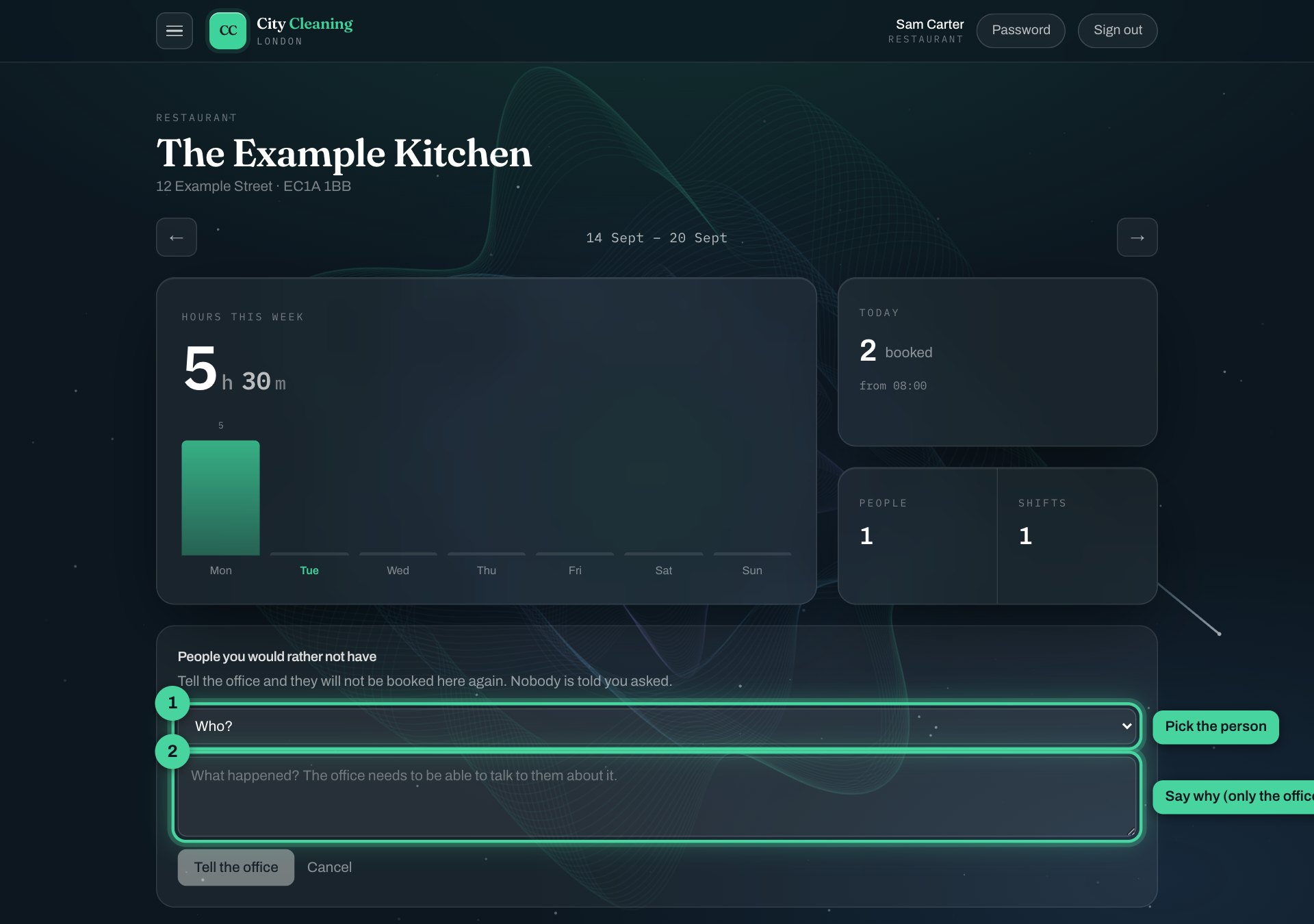
- 1Who
- 2What happened (only the office sees this)
11Turn notifications on
Open the Menu (top left). At the bottom, switch on Told when the office replies. Your phone or computer will ask once if it is allowed. On an iPhone, first add the portal to your home screen (Share → Add to Home Screen).
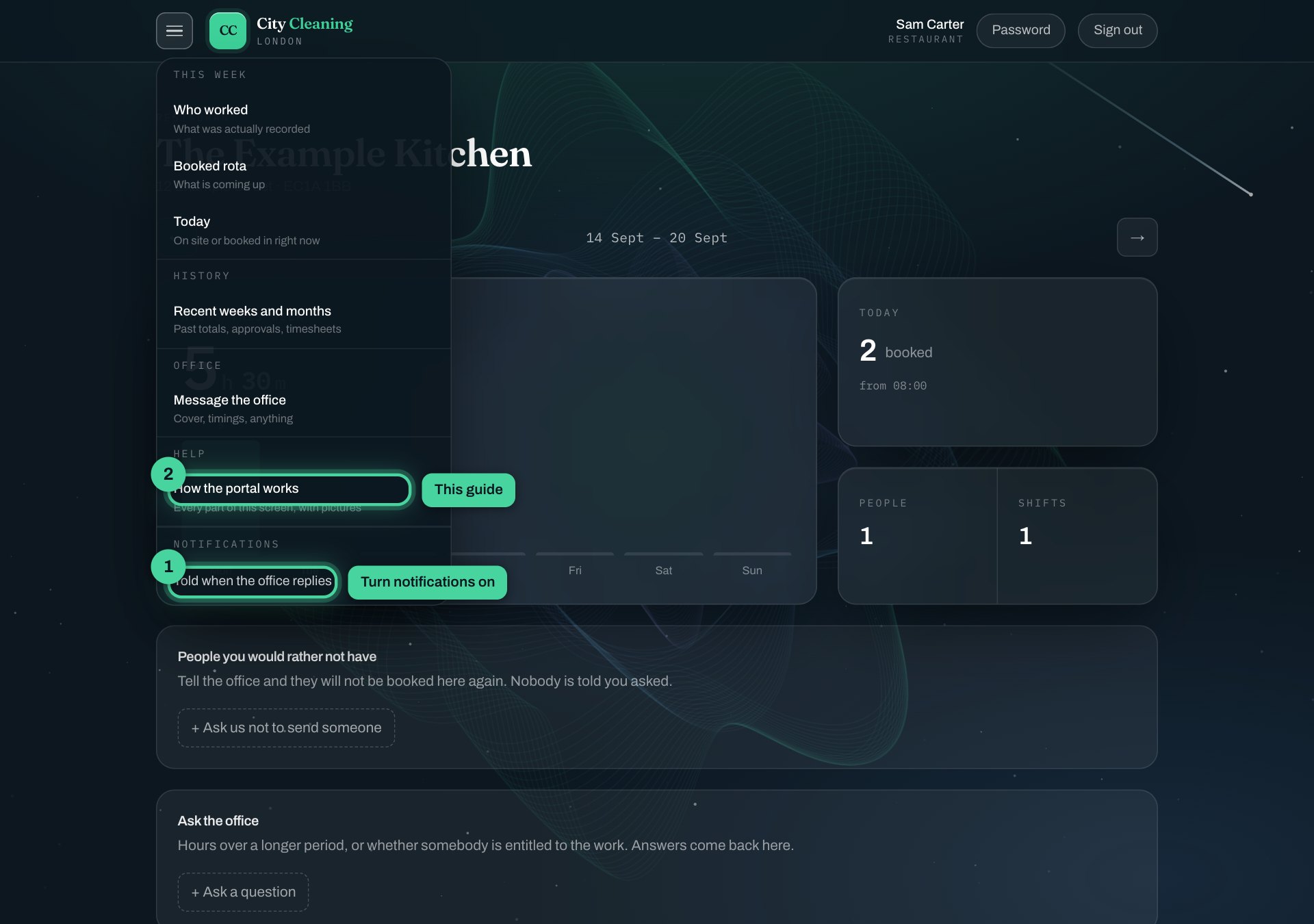
- 1Turn notifications on
- 2This guide
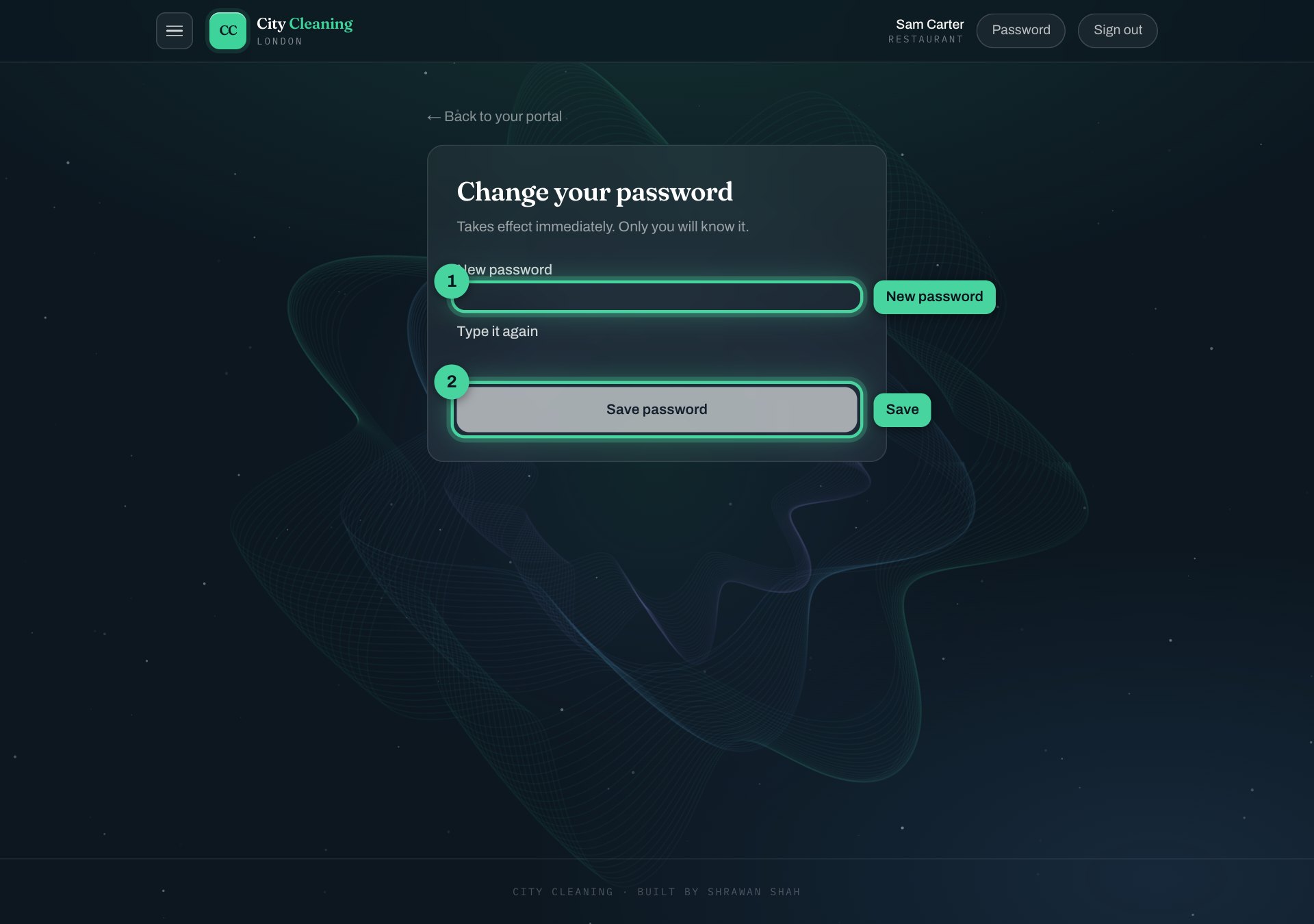
12Change your password
Press Password at the top right, type a new one, and save.
13Once a month: how did it go?
Near the top of the page, once a month, we ask how last month went. Three buttons. One press is enough. You can name somebody if you wish to.